iOS 27 破坏了(缩放内的)超实用低光功能与智能反转的组合,如果有人就职于 @Apple,或认识那里的人,这……
产品与工具 · 2026/11/07
用户报告 iOS 27 破坏了缩放(Zoom)中的低光(Low Light)滤镜与智能反转(Smart Invert)的组合功能。此前该组合可使屏幕变得非常暗,适合夜间阅读;但在 iOS 27 中,该组合反而使屏幕比仅开启智能反转更亮。用户推测原因是两个滤镜的应用顺序被交换,并提供了详细的错误报告和修复建议,包括恢复旧顺序、添加回归测试等。
该问题影响依赖此辅助功能组合进行夜间阅读的低视力及光敏感用户,修复后可恢复重要的无障碍体验。
iOS 27 has broken the amazingly useful Low Light feature (inside Zoom) combined with Smart Invert
If anyone works at @Apple, or knows anyone there, it'd be amazing to get this working again!
Bug report and prompt for Apple staff to copy paste into their clanker to fix it:
"## Bug: Zoom "Low Light" filter + Smart Invert makes the screen brighter instead of darker (regression in iOS 27)
### Summary
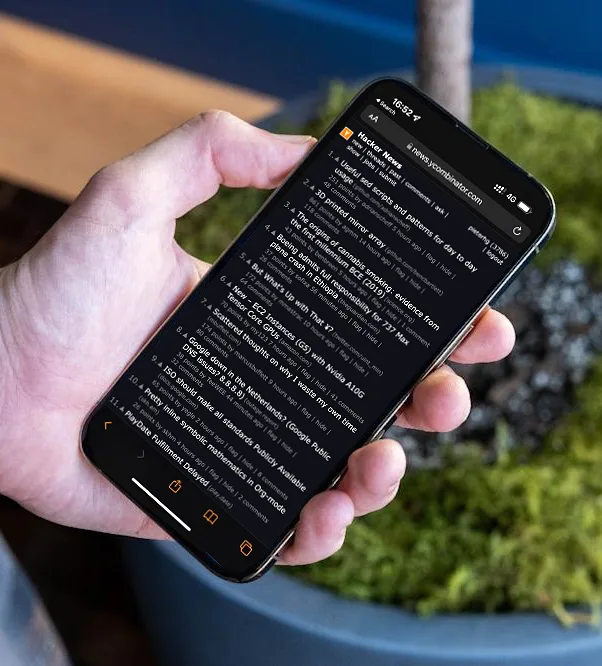
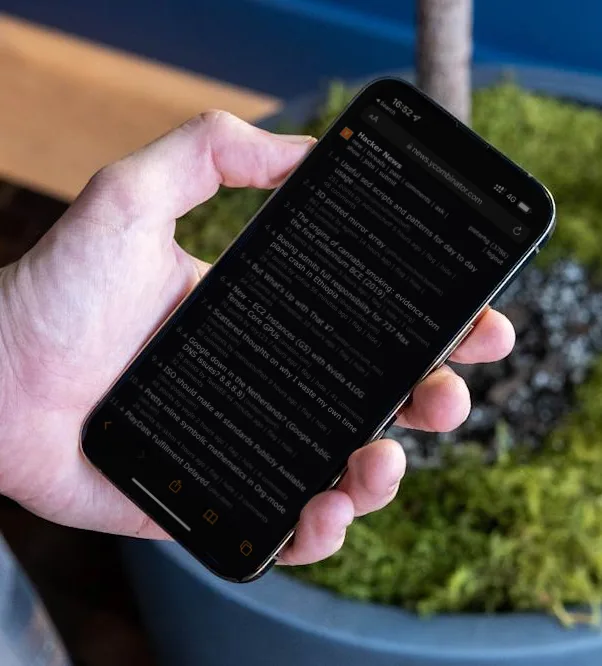
Before iOS 27, turning on Smart Invert together with the Zoom filter "Low Light" made the screen very dark. Many users rely on this to read at night, like a Kindle. In iOS 27 the same combination makes the screen noticeably BRIGHTER than Smart Invert alone: the background looks washed-out light grey and the text is full white.
### Steps to reproduce
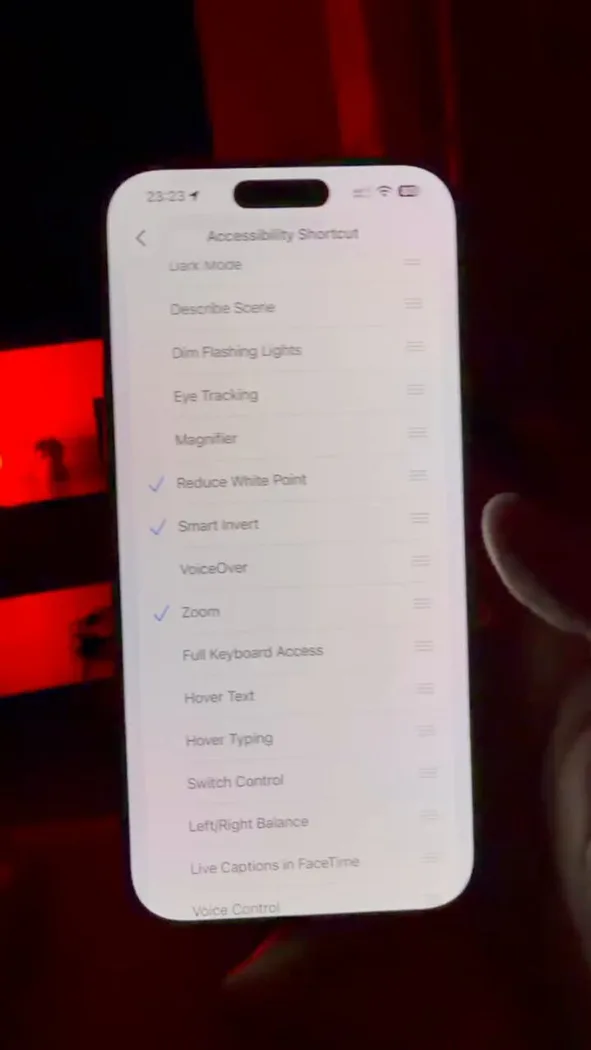
1. Settings → Accessibility → Display & Text Size → turn on Smart Invert.
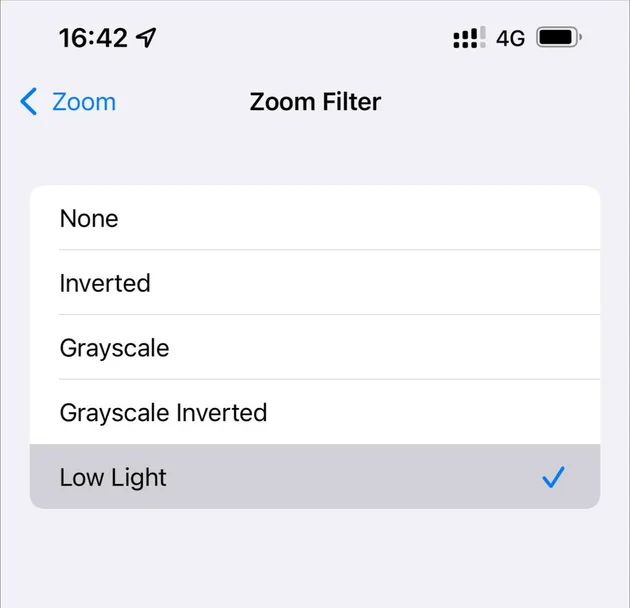
2. Settings → Accessibility → Zoom → turn on Zoom, set Zoom Filter to "Low Light", Zoom Region to Full Screen, and zoom level 1.0x (or the lowest possible).
3. Open a white page, e.g. Safari or Books.
4. Compare the screen with Low Light on and off.
### Expected (iOS 26 and earlier)
- White background → near black
- Black text → dim grey
- Result: darker than Smart Invert alone
### Actual (iOS 27)
- White background → light grey (~70%)
- Black text → full white
- Result: brighter and lower contrast than Smart Invert alone
### Likely root cause
The order of the two filters seems to have been swapped in the display/compositing pipeline.
- Old order: Smart Invert → Low Light (invert, then dim)
- Output = 0.3 × (1 − x), which is always dark
- New order: Low Light → Smart Invert (dim, then invert)
- Output = 1 − 0.3 × x, which is mostly bright, because inverting a dimmed image turns the dimming into brightening
The washed-out grey look is the typical sign of dimming before inverting. My guess is that a refactor in iOS 27 moved Smart Invert into a final full-screen pass, or moved the Zoom filter earlier in the chain, so Low Light now runs underneath the inversion instead of on top of it.
### Task
1. Find where the Zoom filters (Low Light, Grayscale, Inverted, etc.) and Smart Invert / Classic Invert are applied in the render/compositor pipeline. Compare this ordering between iOS 26 and iOS 27 to find the change that swapped them.
2. Restore the old behavior: Low Light (and any other dimming/brightness-reducing Zoom filter) must be applied AFTER Smart Invert and Classic Invert.
3. Keep the iOS 27 change that caused this if it fixed something else (e.g. correct inversion of new UI materials). Fix only the ordering of the Zoom filter relative to the invert pass, not the whole refactor.
4. Check that other combinations still work as before:
- Low Light + Classic Invert
- Low Light + Reduce White Point
- Low Light + Dark Mode
- Grayscale Zoom filter + Smart Invert
- Color Filters + Smart Invert
- Zoom at 1.0x and higher magnification, Full Screen and Window zoom
- Screenshots and screen recordings (check what is captured matches expectations)
5. Add a regression test that renders a white frame with Smart Invert + Low Light enabled. It should assert the output brightness is LOWER than with Smart Invert alone.
### Acceptance criteria
- Smart Invert + Low Light gives a darker screen than Smart Invert alone, matching iOS 26 behavior.
- No change to the other accessibility filter combinations listed above.
- The regression test passes and is in CI.
### Why it matters
This is a popular accessibility workaround for light sensitivity and night reading. Many low-vision and light-sensitive users depend on it, and Apple has no other built-in way to get the screen this dark."
THANK YOU!
在原站观看视频
<hr />@levelsio: 💡 iOS has a secret feature to make its screen as dark as a Kindle so you can read at night:
- go to iOS settings -> Accessibility
- go to Zoom -> Zoom Filter
- enable Low Light ✔️
Combine this with iOS's Smart Invert mode and you now have a low light dark mode reader